

Why cant I use my flashlight is one of the most frustrating questions phone owners search for when the torch icon suddenly refuses to respond.
It usually happens at the worst possible time, like during a power outage or while walking through a dark parking lot.
The flashlight feature feels simple, yet a greyed-out icon or a completely unresponsive toggle can leave anyone confused.
In most cases, the cause is not a broken LED at all. Software glitches, background apps, low battery, overheating, or a wrong setting are usually behind it.
Why Does the Flashlight Suddenly Stop Working
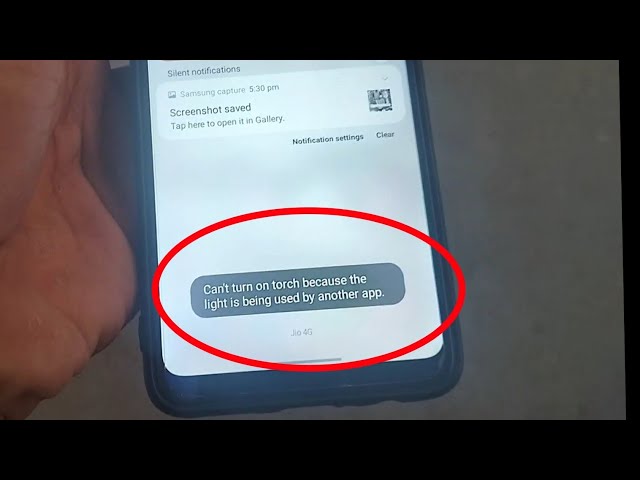
Your phone’s flashlight relies on the same LED hardware used by the camera flash. Whenever another process, app, or system setting interferes with that shared hardware, the torch button can freeze or turn grey.
Most flashlight problems are temporary and software-related rather than physical damage. A quick understanding of the common triggers makes troubleshooting much faster.
Below is a breakdown of the most reported causes across both iPhone and Android devices in 2026.
Common Reasons Your Flashlight Is Not Working
Camera App Left Open in Background
The flashlight and camera flash share one single LED. If the Camera app, Instagram, Snapchat, or any scanner app is still running in the background, the flashlight button gets automatically disabled.
Closing that app from the recent apps screen usually restores the flashlight instantly without any further steps needed.
Low Power Mode or Battery Saver Is Active
Low Power Mode on iPhone and Battery Saver on Android are designed to limit background activity to extend battery life. On several devices, this directly restricts flashlight brightness or blocks it completely.
Turning this mode off from Settings or Control Center often brings the flashlight back within seconds.
Battery Level Is Too Low
When the battery drops below a critical percentage, many phones automatically disable power-hungry features like the LED flash to preserve enough power for calls.
Charging the device for even ten to fifteen minutes is usually enough to bring the flashlight function back online.
Phone Is Overheating
Phones that get too hot from direct sunlight, gaming, or fast charging will automatically disable power-intensive features, including the flash, to protect internal components from damage.
Letting the device rest in a cool, shaded spot for a few minutes typically resolves this issue on its own.
Software Glitch After an Update
Sometimes a recent iOS or Android update introduces a small bug that affects Control Center shortcuts, including the flashlight toggle.
A simple restart clears temporary memory issues and often fixes this glitch without needing any deeper troubleshooting.
Case or Debris Blocking the LED
A thick phone case, a cracked lens cover, or dust buildup around the camera module can physically block the light from the LED flash.
Removing the case and gently cleaning the camera area with a microfiber cloth often solves the problem completely.
Third-Party Flashlight App Conflicts
Installing multiple flashlight apps, especially on Android, can cause permission conflicts where one app blocks another from accessing the LED hardware.
Uninstalling extra flashlight apps and relying on the built-in system toggle usually prevents this conflict from happening again.
Corrupted System Settings
Occasionally, a corrupted settings file prevents Control Center or Quick Settings shortcuts from functioning correctly, even though the rest of the phone works fine.
Resetting all settings, without erasing personal data, generally repairs this without any noticeable side effects.
Do Not Disturb or Focus Mode Interference
Certain Focus modes on iPhone and custom automation routines on Android can silently restrict background features, including the flashlight shortcut on the lock screen.
Checking your active Focus mode or automation rules in Settings can reveal whether a custom profile is quietly blocking flashlight access.
Screen Time or Parental Control Restrictions
Some parental control apps and Screen Time settings limit access to Control Center or Quick Settings tiles, which indirectly disables the flashlight toggle for restricted profiles.
Reviewing Screen Time restrictions under Content and Privacy settings helps confirm whether this is blocking your flashlight unexpectedly.
Water Damage or Moisture Detection
Modern iPhones and many Android flagships include moisture sensors that automatically disable the flash if water is detected near the charging port or camera module.
Drying the phone thoroughly and waiting a few hours before charging usually allows the flashlight to function normally again.
Understanding Flashlight vs Camera Flash
The flashlight feature and the camera flash are not separate components inside your phone. They both draw power from a single LED positioned near the rear camera lens.
This shared hardware design explains why opening the Camera app almost always disables the standalone flashlight toggle in Control Center or Quick Settings.
Understanding this relationship helps you troubleshoot faster, since most flashlight complaints trace back to this simple hardware-sharing limitation rather than an actual malfunction.
Quick Reference Table: Causes and Fixes
| Common Cause | Platform Affected | Fastest Fix |
|---|---|---|
| Camera app running in background | iPhone & Android | Force close the camera app |
| Low Power Mode / Battery Saver | iPhone & Android | Disable power saving mode |
| Low battery percentage | iPhone & Android | Charge for 10-15 minutes |
| Overheating | iPhone & Android | Let device cool down |
| Software glitch | iPhone & Android | Restart the device |
| Case blocking LED | iPhone & Android | Remove case, clean lens |
| App permission conflict | Android | Uninstall extra flashlight apps |
| Corrupted settings | iPhone & Android | Reset all settings |
How to Fix Flashlight Not Working on iPhone
Apple’s flashlight is built directly into iOS Control Center, which makes troubleshooting fairly predictable once you know where to look.
Force Close the Camera App
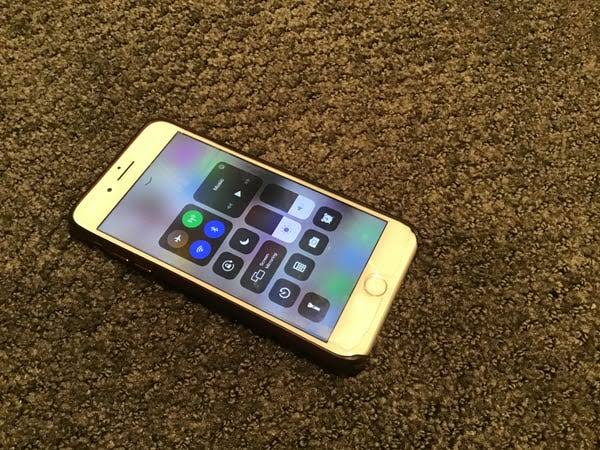
Swipe up from the bottom of the screen and hold until app previews appear. Swipe up on the Camera app card to fully close it, then try the flashlight again.
Turn Off Low Power Mode
Go to Settings, tap Battery, and switch off Low Power Mode. This single step resolves flashlight issues on a large number of reported cases.
Restart Your iPhone
Press and hold the side button along with a volume button until the slider appears. Slide to power off, wait a minute, then turn it back on.
Force Restart for Stubborn Glitches
Quickly press Volume Up, then Volume Down, then press and hold the Side button until the Apple logo shows up on screen.
Update iOS to the Latest Version
Navigate to Settings, then General, then Software Update. Installing the newest iOS version often patches bugs affecting Control Center features.
Reset All Settings
Go to Settings, General, Transfer or Reset iPhone, then Reset All Settings. This does not delete photos or apps, only preferences and toggles.
Check for Case or Lens Obstruction
Remove any thick case or lens attachment covering the rear camera module and inspect for dirt or scratches blocking the flash output.
Test the LED Through the Camera App
Open Camera, switch to Photo mode, tap the flash icon to force it on, and take a picture to confirm whether the LED physically fires.
How to Fix Flashlight Not Working on Android
Android flashlight troubleshooting follows a similar pattern, though menu names vary slightly between Samsung, Pixel, and other brands.
Close Camera and Scanner Apps
Open the recent apps overview and swipe away the Camera app, along with any QR scanner or social media app currently using the camera.
Disable Battery Saver Mode
Head into Settings, then Battery, and turn off Battery Saver or Power Saving Mode, since this feature often restricts flashlight brightness.
Restart the Phone
Hold the power button until the restart option appears, then tap Restart. This clears background processes that may be blocking the LED.
Uninstall Conflicting Flashlight Apps
If multiple flashlight or utility apps are installed, remove the extras and rely only on the built-in Quick Settings toggle for stability.
Update Android System Software
Go to Settings, System, then Software Update to install the latest patches, which frequently fix Quick Settings and hardware permission bugs.
Clear Camera App Cache
In Settings, Apps, find Camera, tap Storage, then Clear Cache. This removes corrupted temporary files without deleting any photos.
Reset App Preferences
Open Settings, Apps, tap the three-dot menu, and select Reset App Preferences to fix permission conflicts affecting the flashlight toggle.
Check Camera Permissions
Go to Settings, Privacy, Permission Manager, then Camera, and confirm that no unnecessary app has been denied or granted conflicting camera access.
Table: iPhone vs Android Fix Comparison
| Step | iPhone Method | Android Method |
|---|---|---|
| Close background app | Swipe up on app card | Swipe away from recents |
| Disable power saving | Settings > Battery | Settings > Battery Saver |
| Restart device | Side button + Volume | Power button > Restart |
| Update system | Settings > General | Settings > System Update |
| Reset settings | Reset All Settings | Reset App Preferences |
Step-by-Step Troubleshooting Checklist
Following a clear order saves time instead of randomly trying settings. Work through these steps one at a time before assuming hardware damage.
Step 1: Close All Camera-Related Apps
Check recent apps and force close Camera, Instagram, Snapchat, and any QR or barcode scanner before testing the flashlight again.
Step 2: Disable Power Saving Features
Turn off Low Power Mode or Battery Saver, since both are common culprits behind a dimmed or disabled flashlight.
Step 3: Restart the Device
A simple restart resolves the majority of temporary software glitches affecting Control Center and Quick Settings shortcuts.
Step 4: Inspect the Case and Lens
Remove your case and check for dirt, cracks, or coverings blocking the LED flash near the rear camera module.
Step 5: Update the Operating System
Install the latest iOS or Android update, since manufacturers frequently patch bugs related to system toggles and hardware permissions.
Step 6: Reset Settings as a Last Resort
If nothing else works, reset all settings or app preferences to repair any corrupted configuration files silently blocking the flashlight.
Signs It Is Software Versus Hardware
Not every flashlight issue needs a repair shop visit. Comparing the symptoms below helps you decide whether to keep troubleshooting or book a diagnostic.
| Symptom | Likely Cause | Recommended Action |
|---|---|---|
| Icon greyed out only in Control Center | Camera app conflict | Close background apps |
| Flashlight dim but turns on | Low battery or power saving | Charge device, disable saver mode |
| Works in Camera app but not toggle | Software glitch | Restart or reset settings |
| No light even through Camera flash | Hardware damage | Visit service center |
| Flickers randomly | Loose internal connection | Professional inspection |
When the Problem Might Be Hardware
If the flashlight still refuses to turn on after trying every software fix above, the LED flash itself may be physically damaged.
Dropping the phone, water exposure, or a cracked rear panel near the camera module can all damage the internal flash component permanently.
Testing through the Camera app flash, rather than only the Control Center shortcut, helps confirm whether the LED itself fires at all.
In this situation, visiting an authorized service center or Apple Store for a hardware diagnostic is the safest next step.
Attempting to open the phone yourself to inspect the flash module can void your warranty and risks further damage to nearby components.
Preventing Future Flashlight Problems
Keeping only one flashlight app installed, updating your operating system regularly, and avoiding thick cases near the camera module all reduce future flashlight failures.
Charging your phone before it drops too low and avoiding direct sunlight during long calls also helps protect the LED flash long term.
Restarting your device once a week clears minor background glitches before they turn into recurring flashlight problems.
Avoiding third-party utility apps that request unnecessary camera permissions also reduces the chance of conflicts affecting your flashlight toggle.
Cleaning the camera module regularly with a soft, dry cloth prevents dust buildup that can gradually dim or block the LED output over time.
Flashlight Behavior Across Different Phone Brands
Samsung, Google Pixel, and Xiaomi phones each handle flashlight permissions slightly differently, though the underlying camera-sharing limitation remains the same across all Android brands.
Samsung devices sometimes route flashlight control through a separate Edge Panel shortcut, which can occasionally desync from the main Quick Settings tile after a software update.
Pixel phones tend to recover automatically after a single restart, since Google’s stock Android build handles background app conflicts more efficiently than heavily customized skins.
Xiaomi and other MIUI-based phones often include an aggressive battery management system that can silently restrict flashlight brightness even when Battery Saver appears switched off.
Checking brand-specific battery optimization settings, alongside the general fixes above, gives Android users a more complete troubleshooting path for 2026 devices.
Why This Problem Feels So Frustrating
A flashlight is one of the most relied-upon features on any smartphone, used far more often than people realize during everyday emergencies and quick tasks.
Losing access to it during a power outage, a late-night walk, or while searching for something under furniture makes the issue feel bigger than it actually is.
Most users search why cant I use my flashlight expecting a complicated repair, when in reality a single closed app or a toggled setting is usually the entire fix.
Recognizing this pattern removes the panic and lets you troubleshoot calmly, working through simple checks before assuming anything is seriously broken.
Common Situations Where This Issue Appears
Flashlight problems tend to show up in predictable moments, which makes them easier to anticipate and prevent going forward.
Camping trips, power cuts, parking garages, and late-night walks are the most frequently reported scenarios where users suddenly discover their flashlight will not respond.
Heavy phone usage right before these moments, such as gaming or video calls, often means overheating or battery drain is already quietly working against the flashlight feature.
Being aware of these patterns helps you charge your phone in advance or close unnecessary apps before you actually need the flashlight function.
Final Software Checks Before Visiting a Repair Shop
Before assuming permanent damage, confirm that airplane mode is switched off, since some devices restrict auxiliary hardware features during flight mode.
Also check that no accessibility shortcut has accidentally been mapped to disable Control Center tiles, which can silently prevent the flashlight from responding to taps.
Testing the flashlight after a full shutdown, rather than a simple restart, sometimes clears deeper memory issues that a standard reboot does not fully resolve.
Running through every software check in this guide before booking a repair appointment saves both time and unnecessary service costs.
Frequently Asked Questions (FAQs)
Why cant I use my flashlight on my iPhone suddenly?
The most common reason is the Camera app running in the background and holding onto the shared LED. Force closing it from the recent apps screen usually restores flashlight access right away.
Why is my Android flashlight greyed out?
Battery Saver mode or an open camera-based app, such as a QR scanner, is usually blocking it. Disabling power saving mode from Settings typically fixes the issue instantly.
Does low battery affect the flashlight?
Yes, many phones automatically disable the flashlight below a certain battery percentage to preserve power for calls. Charging for just a few minutes usually restores full function.
Can overheating disable my flashlight?
Yes, phones automatically disable the LED flash and other power-hungry features when internal temperatures rise too high. Letting the device cool down in shade resolves it.
Will restarting my phone fix the flashlight?
In most software-related cases, yes. A restart clears temporary background glitches affecting Control Center or Quick Settings shortcuts almost immediately.
Can a phone case block the flashlight?
Yes, thick cases, lens attachments, or dirty camera modules can physically cover the LED. Removing the case and wiping the lens usually solves the problem completely.
Do I need to update my phone to fix this?
Sometimes yes, since outdated software can carry unpatched bugs affecting the flashlight toggle. Installing the latest iOS or Android update often resolves it for good.
Is a broken flashlight always a hardware issue?
No, most flashlight problems are software-related and fixable in minutes. Hardware damage is only likely after drops, water exposure, or visible cracks near the camera.
Can too many flashlight apps cause conflicts?
Yes, multiple flashlight apps installed at once can compete for the same LED permission. Uninstalling the extras usually prevents this conflict entirely going forward.
Should I reset all settings to fix my flashlight?
Only if other fixes fail after trying restarts and updates. Resetting all settings repairs corrupted toggles without deleting your photos, apps, or personal data.
Conclusion
Why cant I use my flashlight is almost always caused by something simple and fixable rather than a permanent hardware failure.
Background camera apps, Low Power Mode, low battery, overheating, and minor software glitches account for the vast majority of reported cases on both iPhone and Android.
Working through the fixes in order, starting with closing background apps and restarting the device, resolves the issue for most users within minutes.
If the flashlight still refuses to turn on after a full settings reset, a hardware check at an authorized service center is the safest next step.
Keeping your software updated, limiting flashlight apps to one, and avoiding thick cases near the camera module will help prevent this frustrating problem from returning in the future.
